


 In-depth articles, series and guides

Ever since AI tools arrived in the market, I've been finding ways to use them not to replace my core work, which is writing, thinking, and problem-solving, but instead, to reduce some of the manual work I had been doing for years.
So, recently, when I had the idea of keeping a daily catch-all note to brain-dump ideas, tasks, quotes, etc., and organise them at the end of the day, I wondered whether AI could handle the organisation for me.
This would save me time every day and take a manual task off my plate.
With a minimal setup and a bit of tweaking, I was able to get the workflow I wanted, and in this post, I'm going to show you how to do the same without any paid AI subscription.
Let's start with:
What needs to be done
The initial idea was this:
Create a blank note for the day and make it accessible in my Mac's workspace so I can quickly jot down new ideas as I read books or articles, think, collect quotes, note tasks for later, and gather feature ideas for my apps.
I'll review the note at the end of the day, and organise, format, and schedule everything as needed.
But wait. Why not do these 2-minute tasks right away and get them out of my headspace?
Here's the problem with that approach:
When I interrupt my flow repeatedly to attend to these ideas and tasks throughout the day, the repeated context-switching kills my rhythm, and I often drift into distraction afterwards.
So, instead of catching and organising on the spot, offloading these things to a messy brain dump of whatever I want to remember or do later, and then organising it at the end of the day, serves me better.
But this organisation process is tedious, and I'd love to delegate it to an assistant to handle the sorting and scheduling for me.
Given I don’t have the budget to hire an actual assistant, this is where AI comes in.
Once I'm done with the day's work, I can ask an AI tool such as ChatGPT or Claude to read today’s note and, based on my predefined guidelines, format and organise everything in its respective places.
With the vision clear, let's start:
Building the workflow
First, we need a space to write our daily brain dump that's easy to access and ideally, could be read by ChatGPT or Claude.
While there are many specialised apps for this task, such as Tot or Antinote, I settled on the Apple Notes app, partly because I use it for everything else anyway, and primarily because the Claude desktop app has an official integration for it.
Now, to have the note stay within reach, I tried a 75-25 window split between the most used app on my laptop, the browser, and the daily note opened in a separate window:
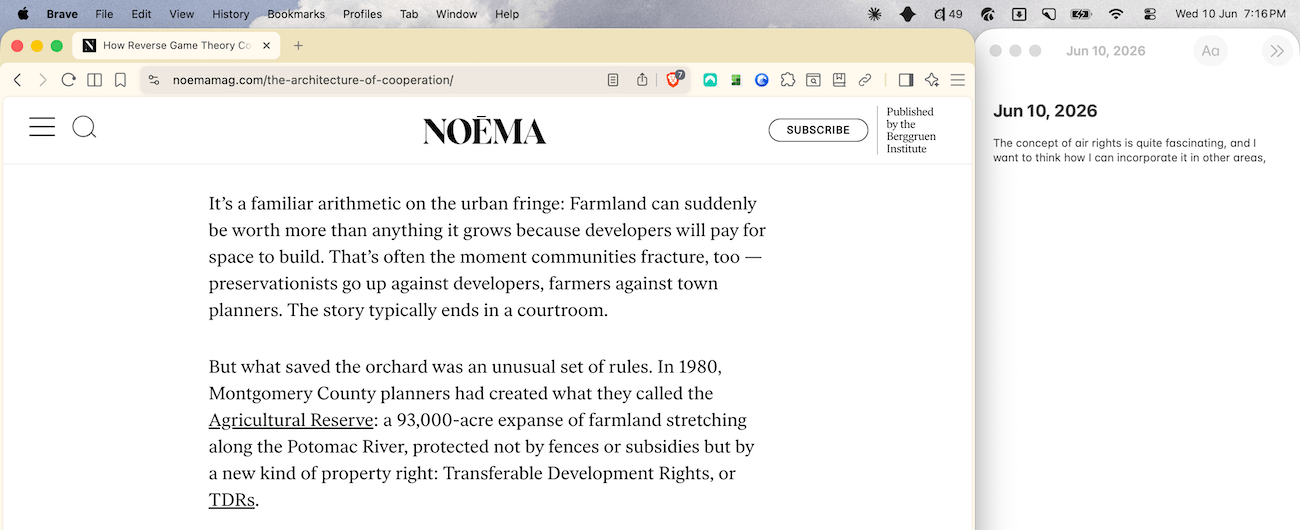
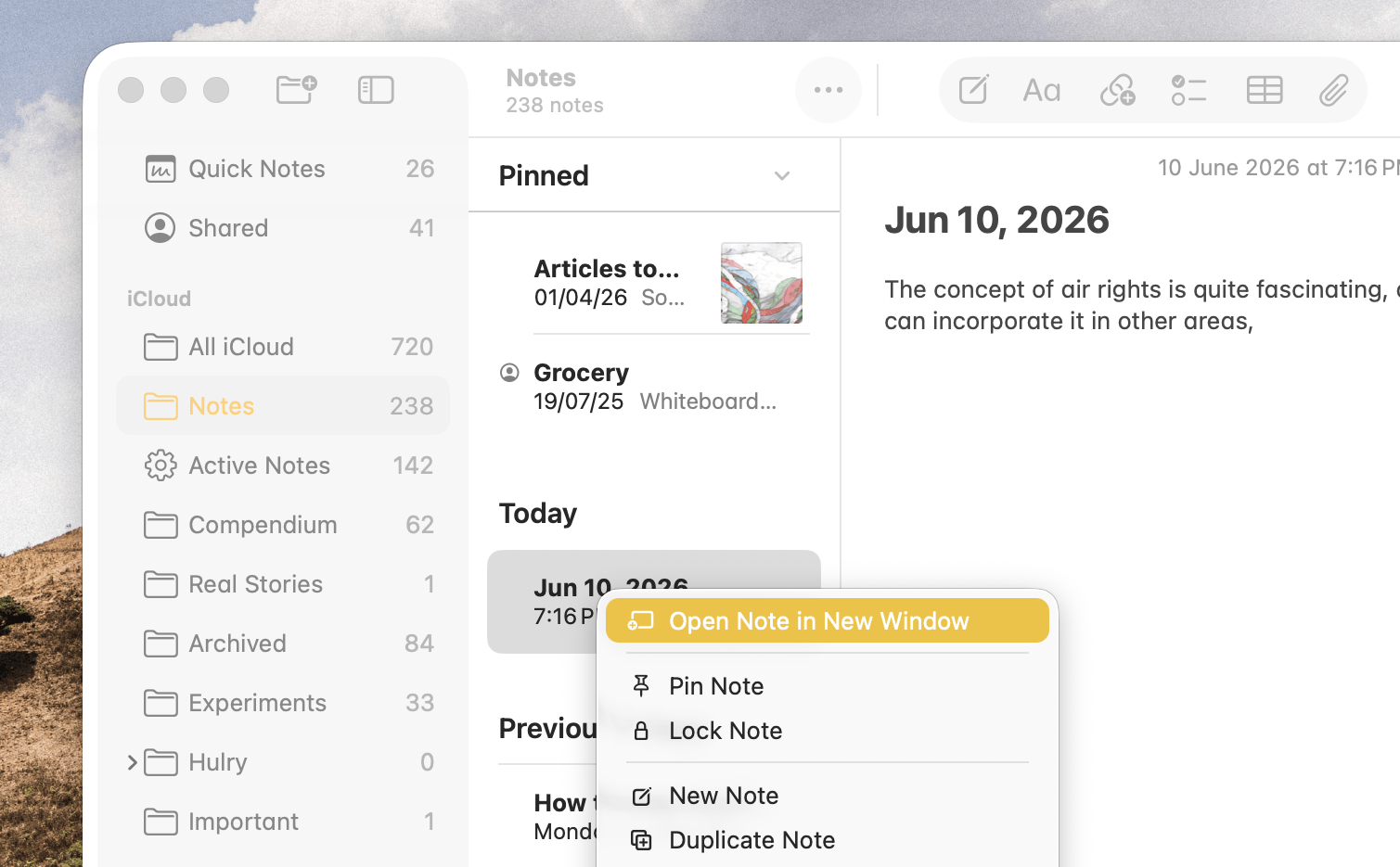
You can open any note from the Notes app in a new window by right-clicking it and selecting Open Note in New Window:
This, however, didn't work for me, because on a 14-inch MacBook Pro, the window split compacted the browser window too much.
If you work on a larger screen, this might be your ideal setup.
As an alternative, I settled on resizing the note window to its minimum size and have it floating on top of the browser window, like this:
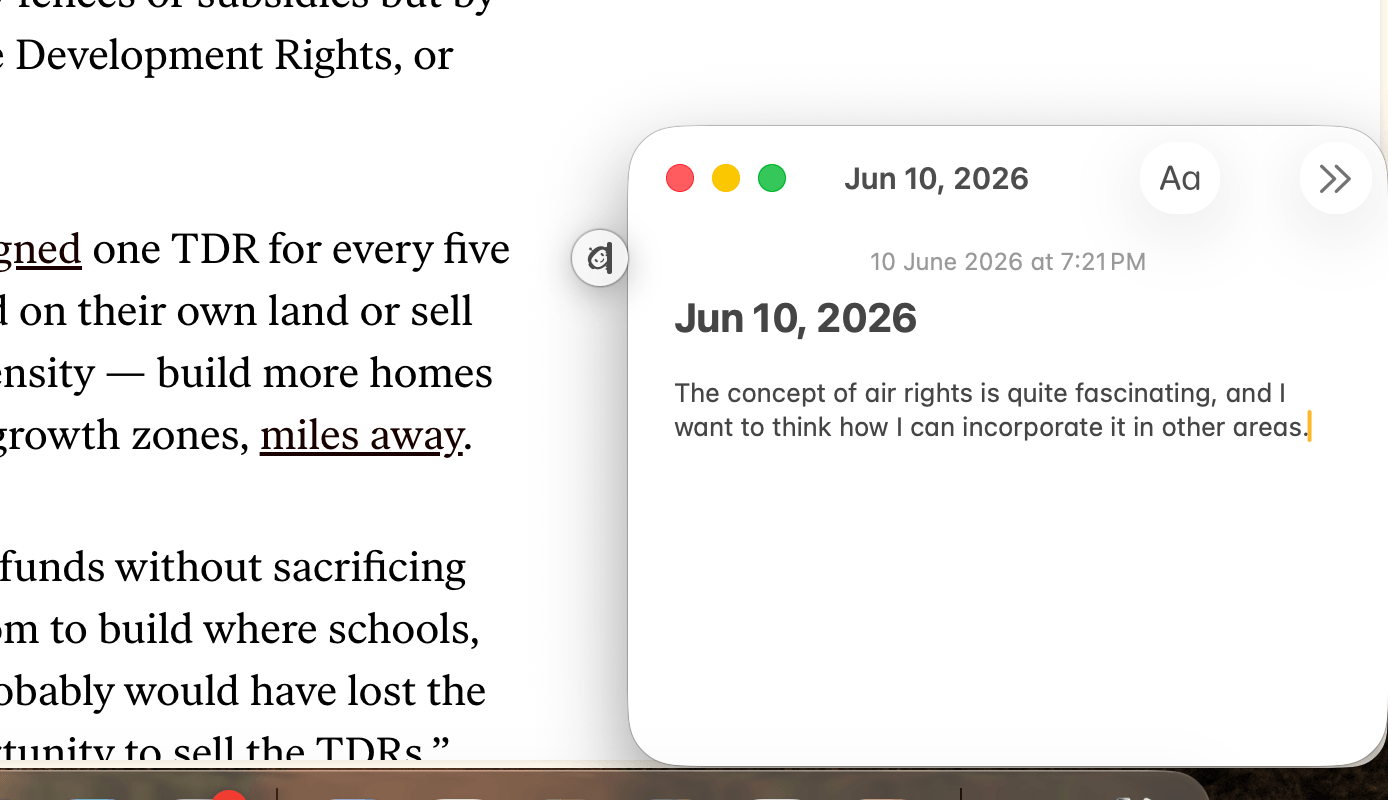
Now, usually, when interacting with the browser, this floating notes window gets hidden behind the browser window.
However, we can keep this tiny window on top, through Notes → Window → Keep on Top:
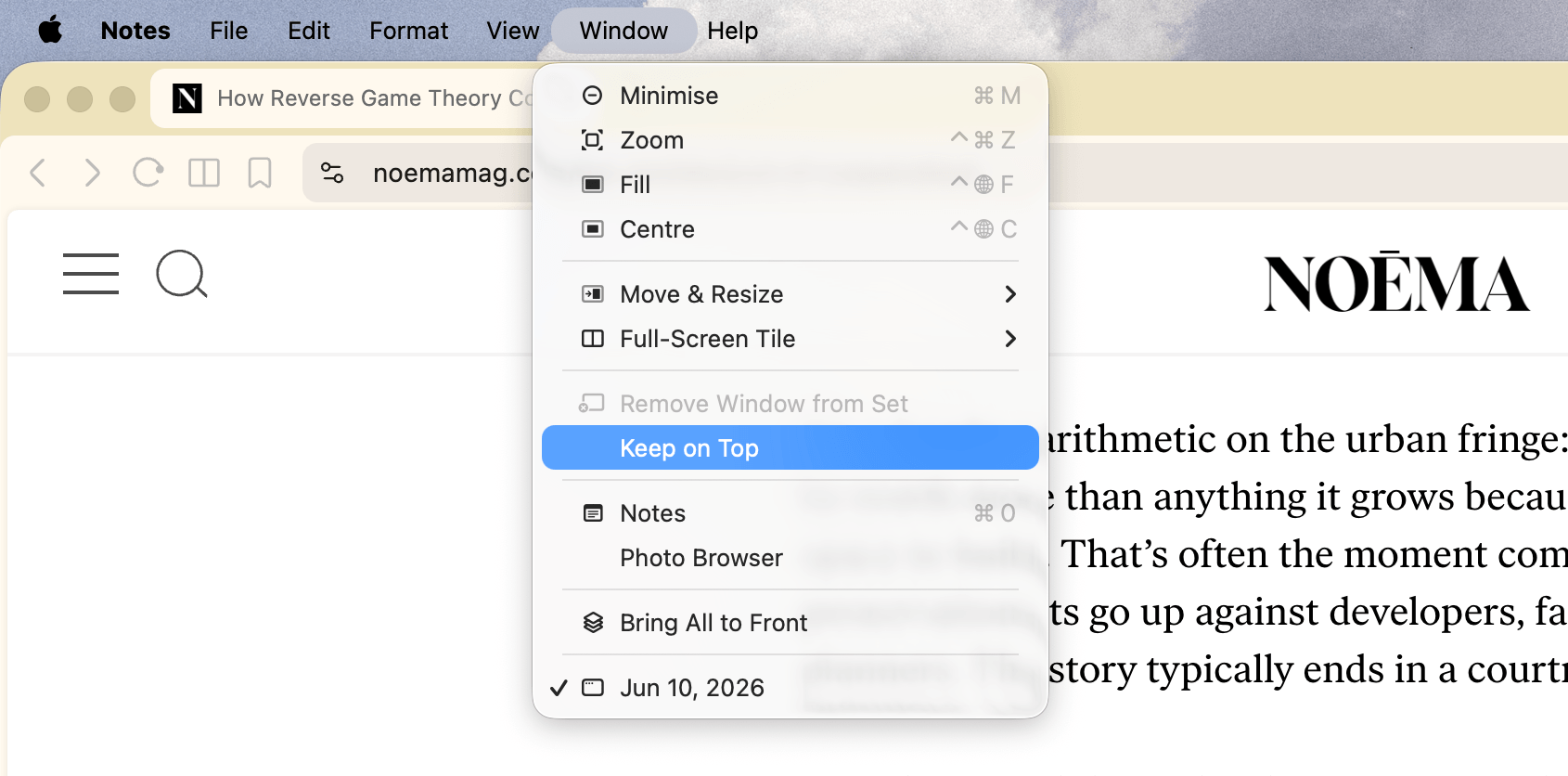
This ensures the note window is always visible, even when we aren't interacting with it.
Another approach would've been to use the quick note feature in the Notes app to have a note window pop up from the corner of the screen when needed, with the setting Always resume to last Quick Note turned on:
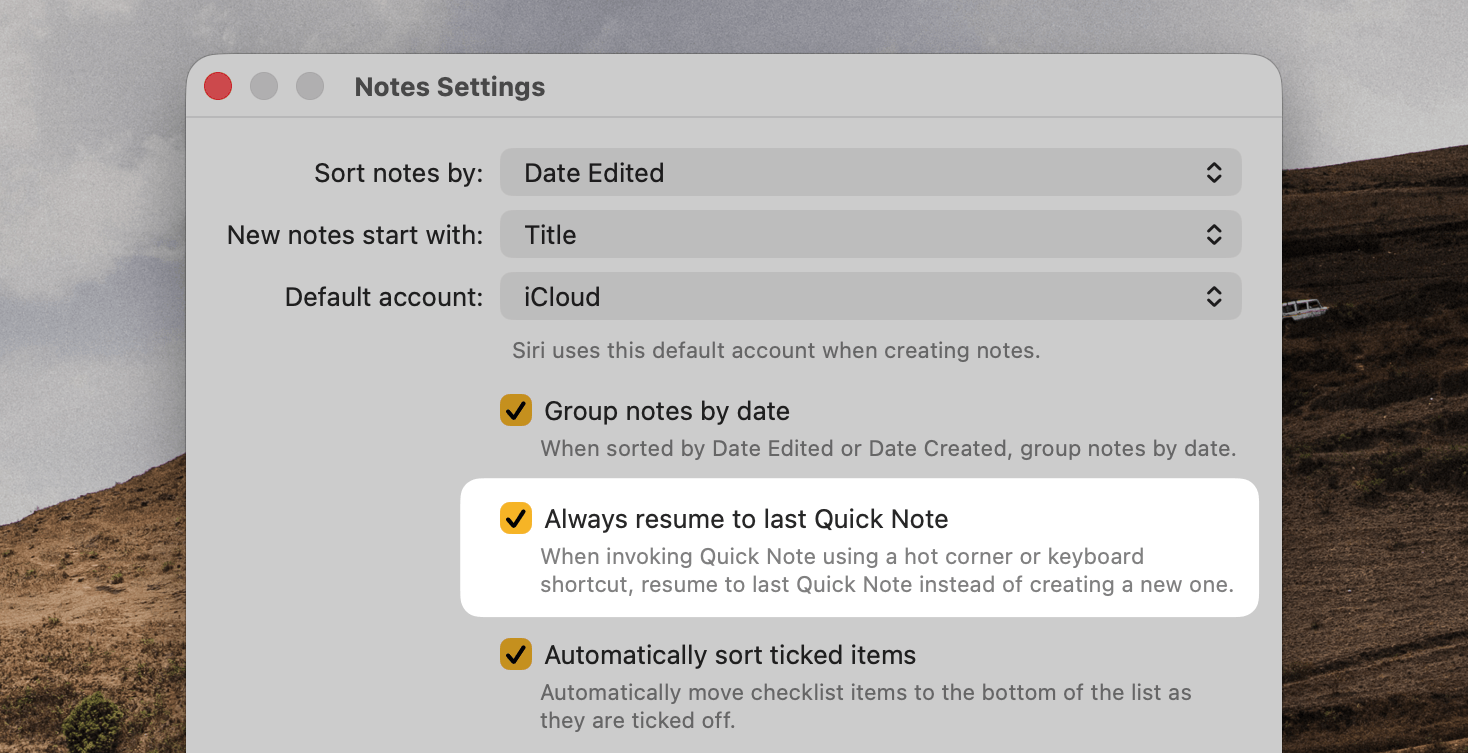
But this is only useful when we’re working with a single note the entire day, which might not always be the case.
Now, back to the daily note, we can title it with today's date to help Claude locate it easily in the Notes app.
And then keep writing ideas, tasks and other things we need to deal with later:
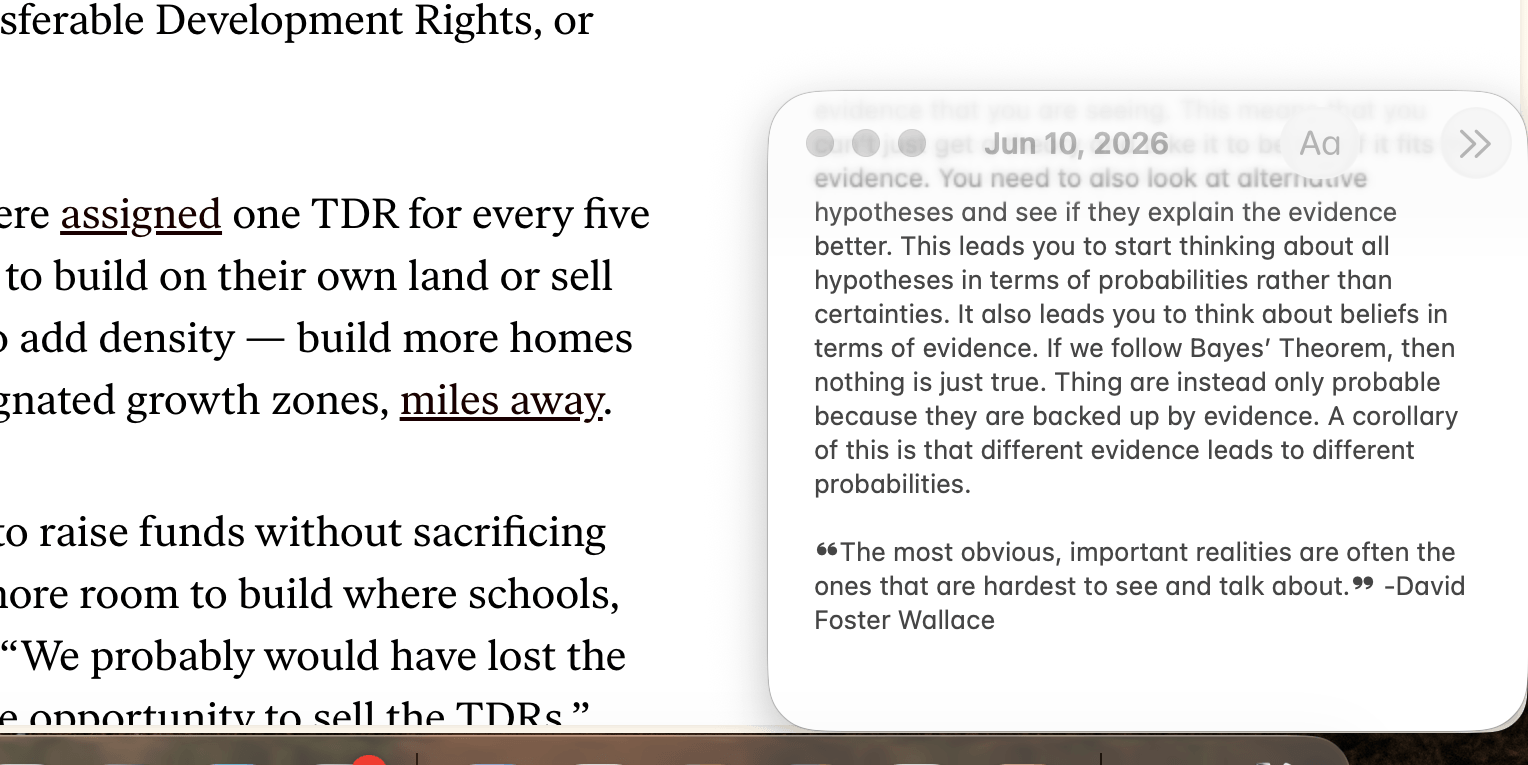
In the first few days of use, I noticed that it's much easier and faster to get my ideas onto the note through a dictation tool, such as Monologue or Eloquent, rather than typing everything out.
I can rapidly dump my thoughts within a few seconds and get back to what I was doing, which is precisely what I wanted from this system to keep interruptions manageable.
With the notes situation taken care of, it's time to connect Claude with Apple Notes and brief it about the requirements.
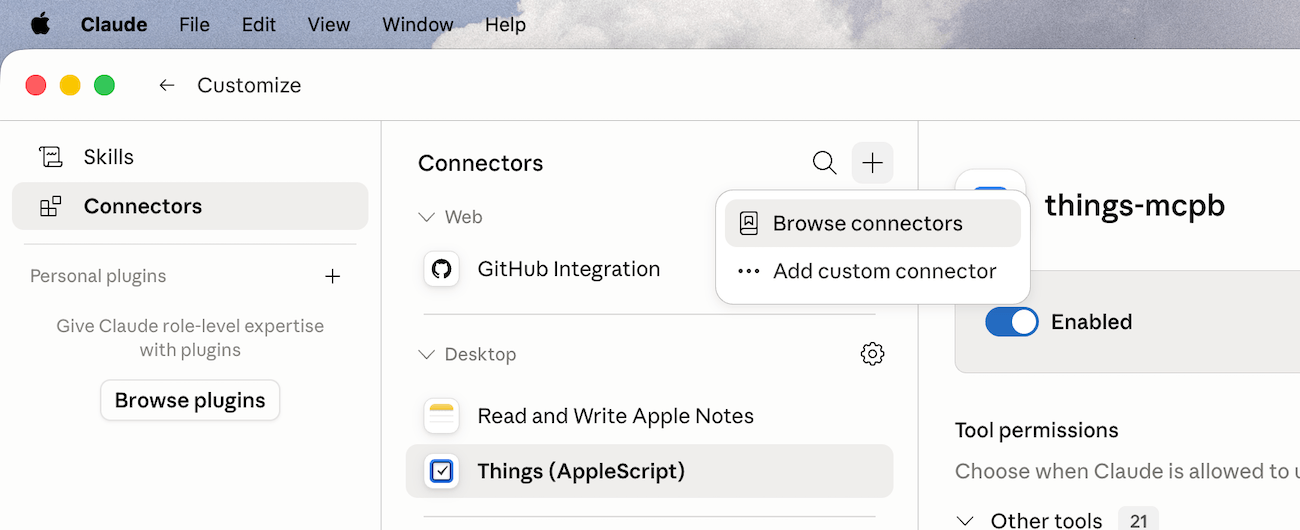
Claude has an official connector for the Notes app, which we can access from Customise → Connectors → Browse connectors:
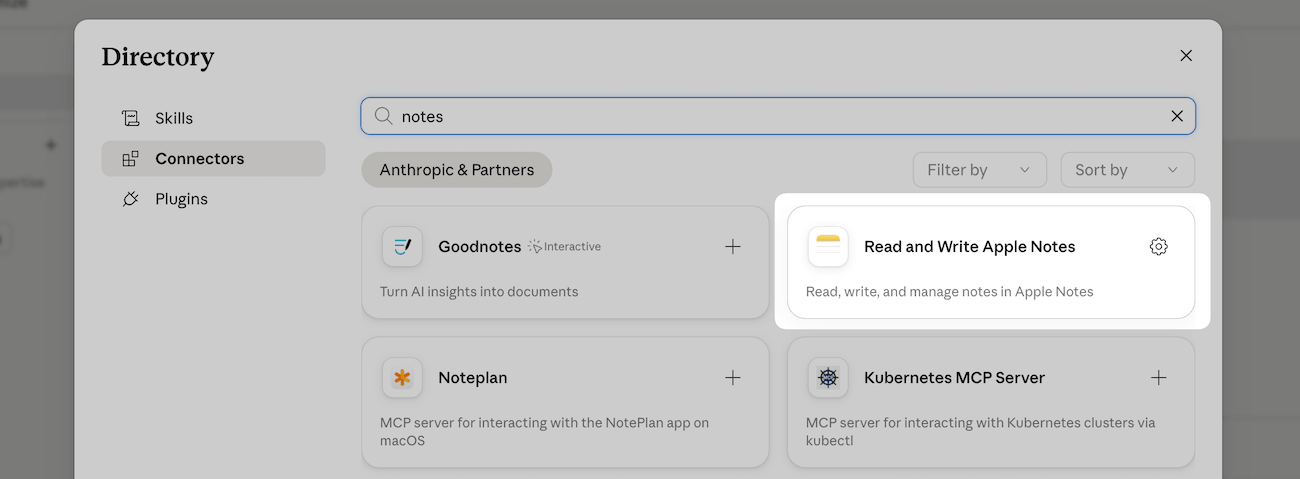
Here, search for “notes” and install the Read and Write Apple Notes connector:
While installing this, I also installed a custom connector for Things 3, so that Claude can schedule tasks from my daily note in Things:
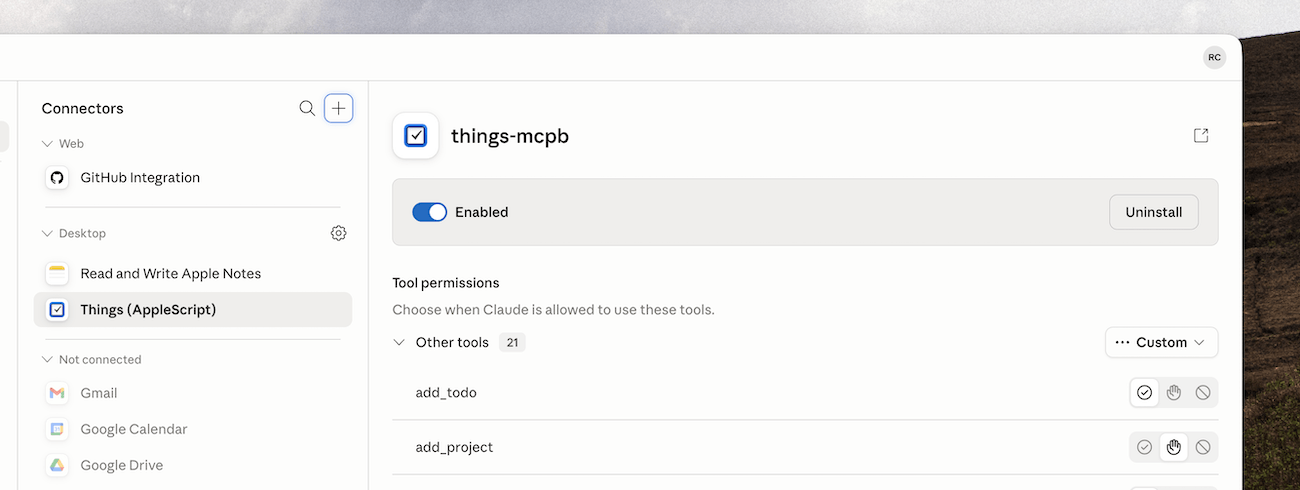
You can connect your Google Calendar and anything else from the list that you might find helpful. If you don't see a connector for your app in the list, try searching for it on Google using “app name mcp” or “app name claude connector”, and install the .mcpb file that comes with it.
With the connections sorted, I started a new chat and gave Claude the following instructions:
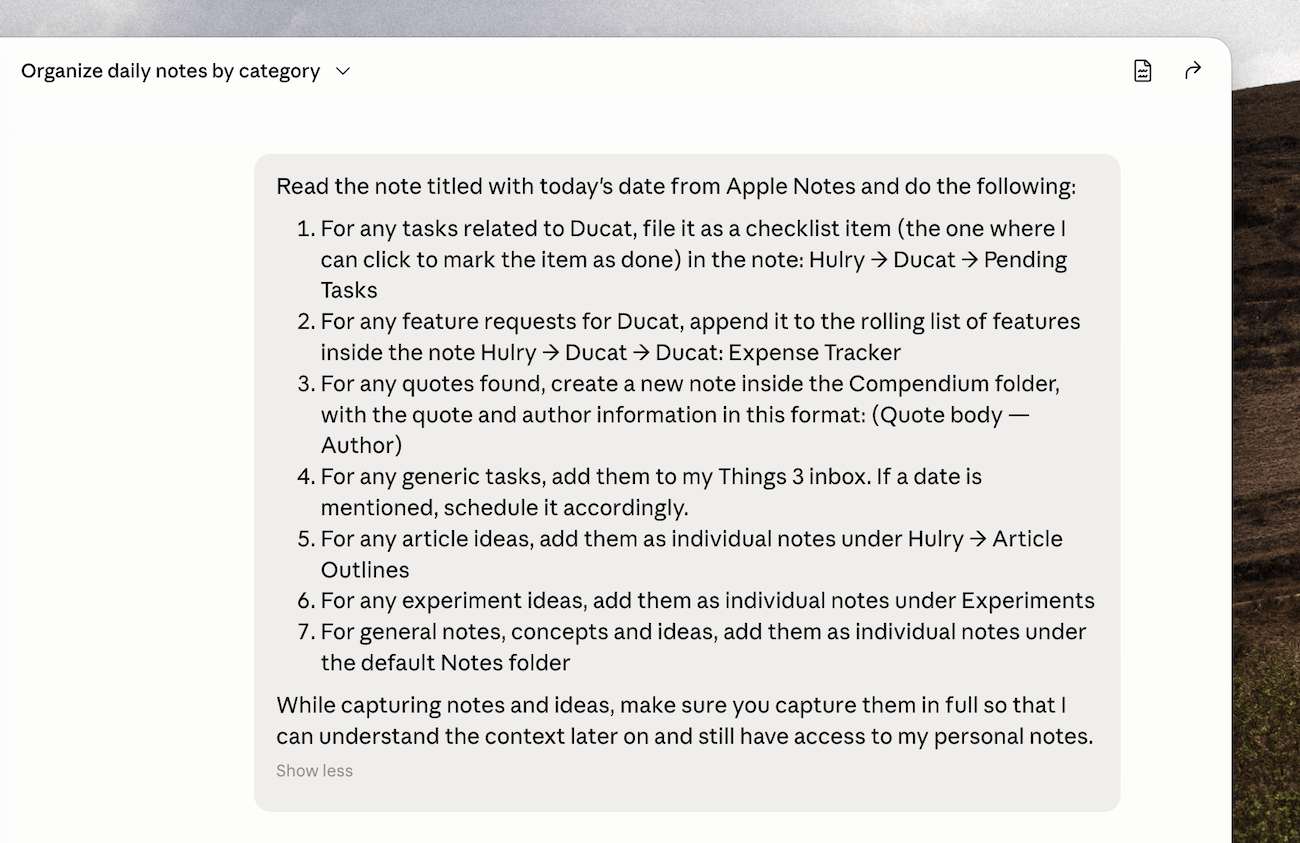
This is where you should be as specific as possible, and guide Claude to work the way you want.
For example, I gave clear instructions on where to file which notes, and how to save quotes and tasks, etc.
Claude will read these instructions and process the daily note accordingly.
Think of how you would train or instruct another person whom you’ve hired to be your personal assistant, and do the same thing with this set of instructions.
To test my prompt, I ran it with an existing note, and Claude read the day’s note and sorted article ideas as individual notes under an Article Outlines folder I already use, saved quotes in the Compendium folder, added feature ideas for my app in a running list I had specified and sent the general tasks to Things.
All within a minute or two, and no manual effort on my part.
Now, while this is a good setup, it can be tedious to copy and paste the prompt every day to process new notes.
Sure, we can keep requesting Claude to process the daily note in our initial thread, but with this approach, Claude’s memory gets too messy, and it eats up our usage quota faster over time.
Instead, we can make this easier by:
Converting the prompt into a skill
Within the chat where you have successfully refined your prompt, you can ask Claude to turn your instructions into a skill:
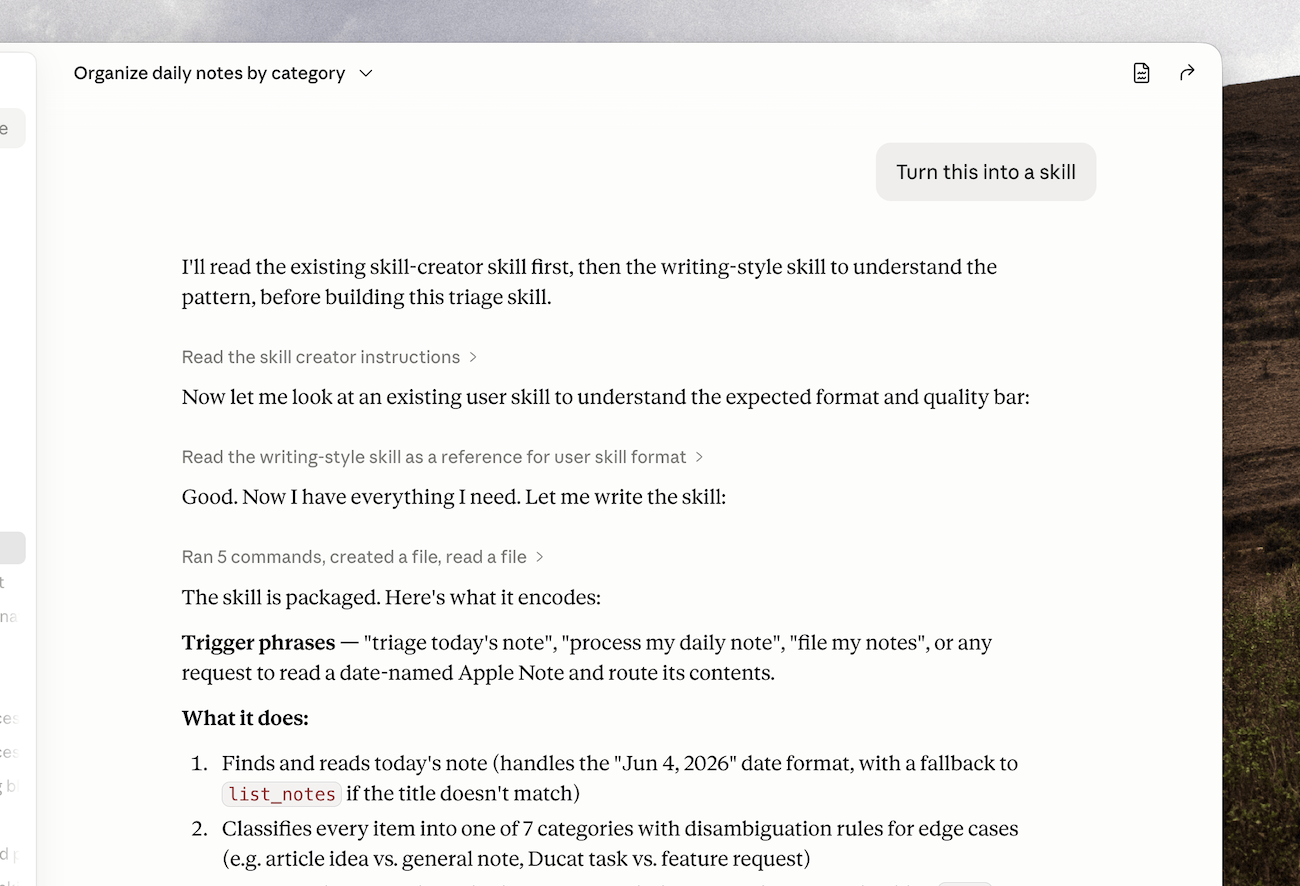
Claude will read your instructions, understand the job and write a SKILL.md file for itself that you can trigger anywhere through a slash command.
You can ask Claude to keep refining the SKILL.md file until you're happy with the instructions, and once done, save it as a new skill:
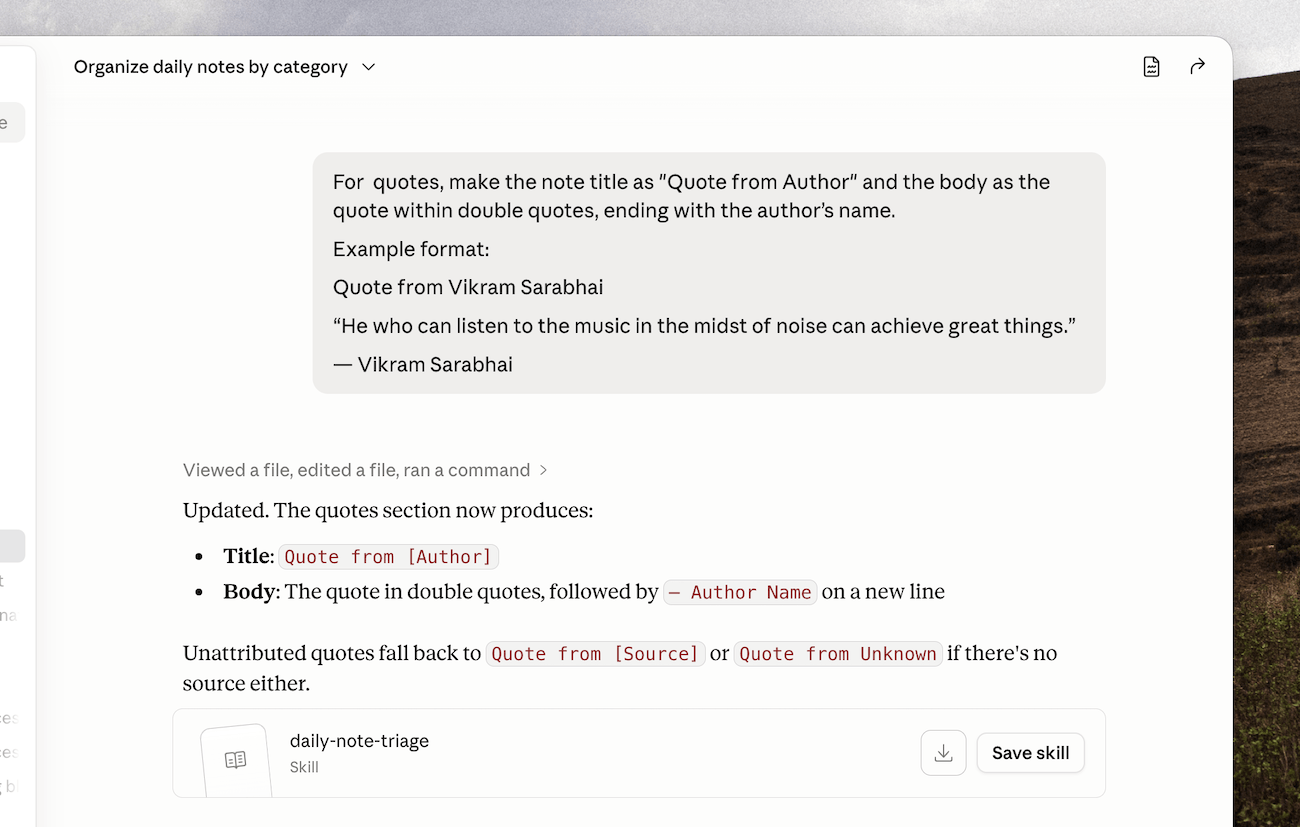
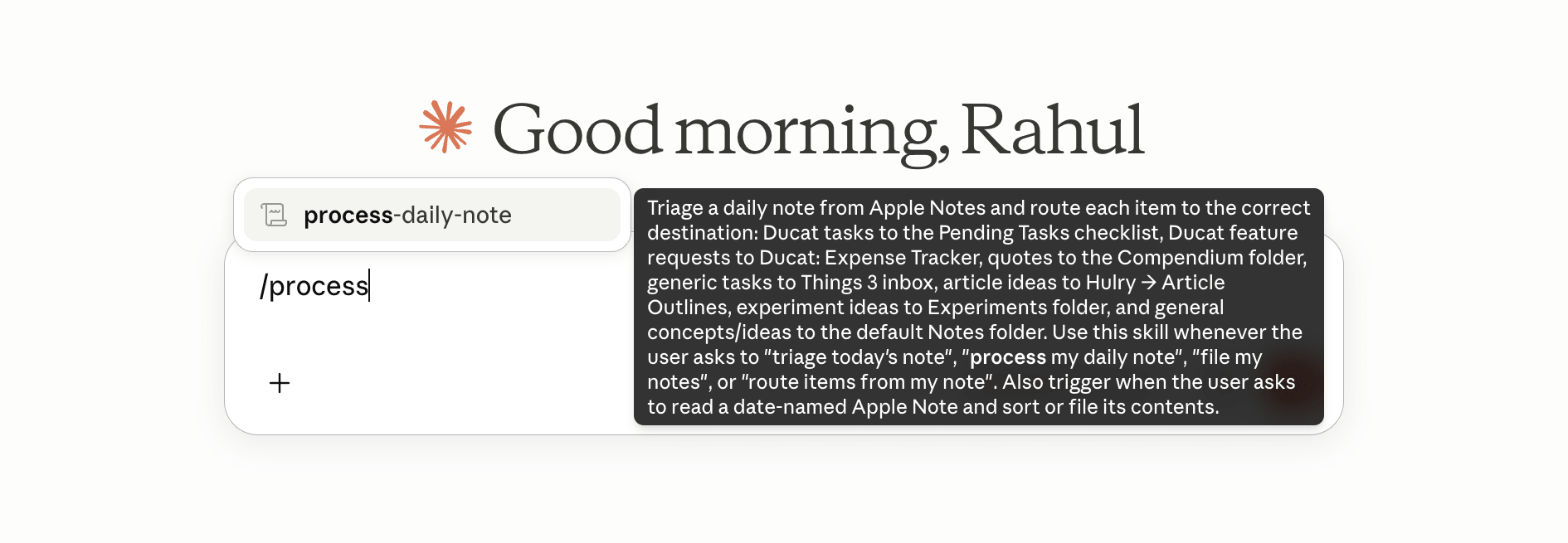
Now, with this setup, at the end of the day, I open Claude, type /process-daily-note and Claude immediately gets to work:
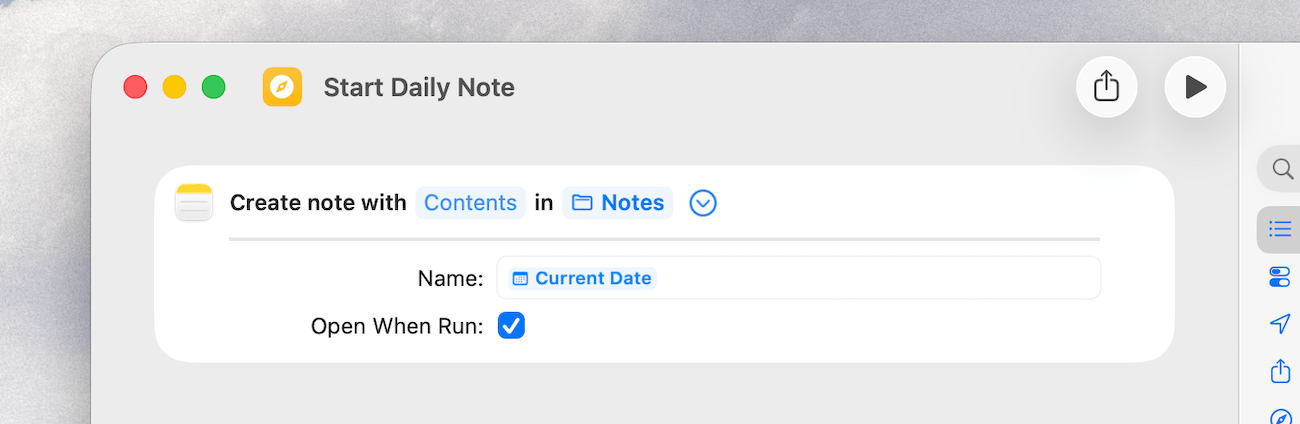
Another area that could be automated is creating the daily note with today’s date as the title.
And I did that using a simple shortcut in the Shortcuts app that creates a new note with today’s date when run:
With this one-time setup, you can have a catch-all running note where you can quickly jot anything worth remembering or acting on without getting too distracted from your task at hand.
So take this setup as a starting point, and:
Make it yours
Think of all the 2-minute tasks you often do throughout the day that can be delegated to an AI assistant through a rough note.
For example, you might note down meeting schedules in your notes and have Claude schedule them in your calendar via the Google Calendar connector.
Or, if you work with Linear or Asana at work, you can have Claude identify action items from your meeting notes or dictated brain dump and create well-formatted tickets.
Try the system for a week, tweak it to your requirements and see if it works well enough for you.