


 In-depth articles, series and guides

Since Raycast first arrived for macOS, I've hovered between it and Spotlight a bit, but a while ago, I returned to Raycast and decided to put more time and effort into my setup.
In the process, I came across features and extensions that genuinely save time and effort.
And in this blog post, I'll be sharing 19 such features, tips and extensions which might be of use to you, too.
Let's start:
1. Setting up Quicklinks
This is probably the most talked-about Raycast feature, and one of my most-used ones.
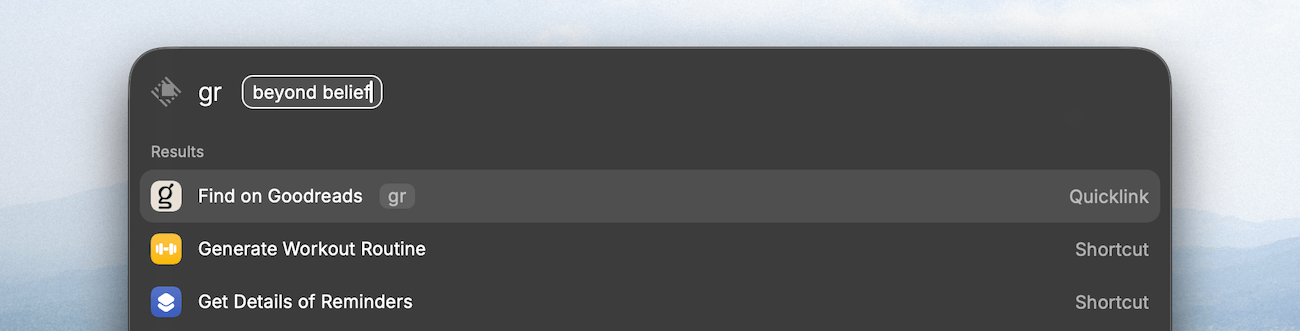
You can set up a Quicklink to open a folder on your computer, search a website, etc., using the Create Quicklink command.
For example, I have a Quicklink to search for a book on Goodreads:
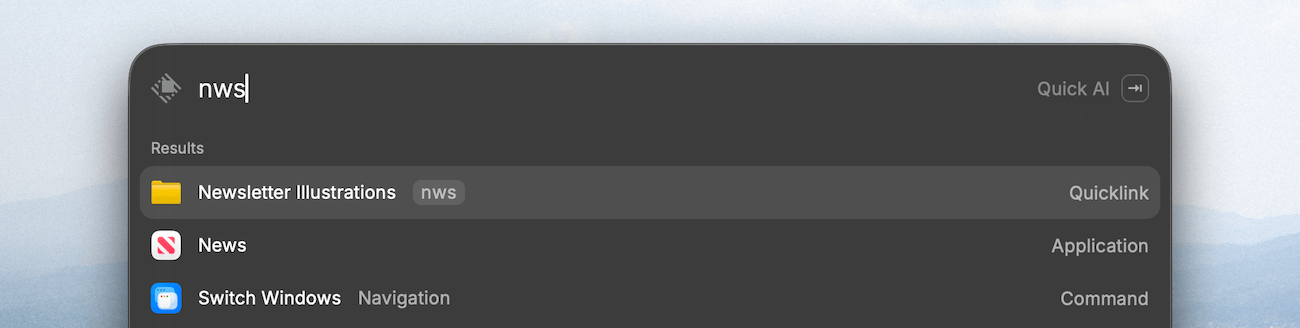
One to quickly open a folder containing illustrations for my weekly newsletter:
And many more.
2. Calculations in natural language
Anytime I need to convert an amount to my local currency, look up a time in my home timezone, or do simple math, I type that prompt in natural language in Raycast:
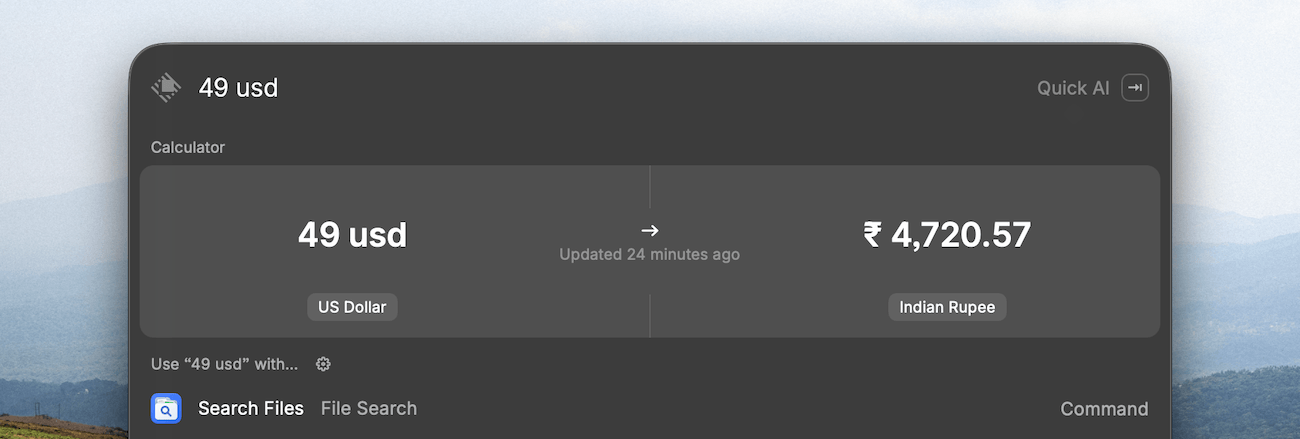
Raycast is smart enough to understand the prompt and show an appropriate result.
3. The Hyper Key
Raycast allows setting a keyboard shortcut for almost every action.
But the problem is that most of the memorable keyboard shortcuts are used by the system or some app.
The way around this problem is using a Hyper Key.
You can set a Hyper Key under Settings → Keyboard, which is essentially a key like the Caps Lock that, when pressed, triggers the key combo ⌃⌥⌘⇧:
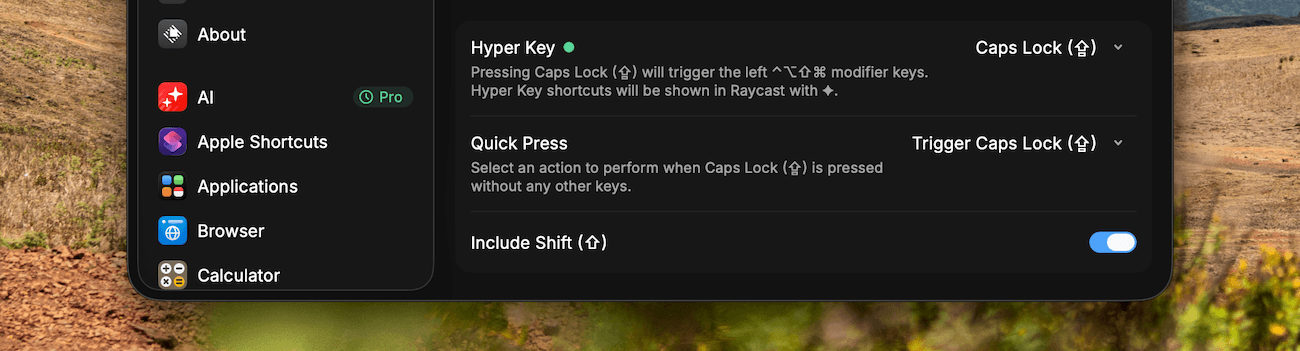
This allows us to set simple yet non-conflicting keyboard shortcuts like Caps Lock + N, which will be automatically translated into ⌃⌥⌘⇧N by Raycast.
4. Launching apps with a shortcut
With a Hyper Key configured, we can set simple keyboard shortcuts to launch frequently used apps.
For example, I've set the key combination, Hyper Key (✦) + N to quickly open the Notes app on my Mac:
I use the convention ✦ + first letter of the app name to set these shortcuts.
Here are a few examples:
- ✦N → Notes
- ✦W → WebStorm
- ✦X → Xcode
5. Dictate anywhere
Raycast 2 introduces a Wispr Flow or Monologue-like dictation feature that works quite accurately and lets me dictate ideas, prompts, etc., anywhere in the system:
Turn it on from the settings and then set a hotkey to trigger it without having to type “dictate” every time.
You can see a collection of your dictated text using the Dictation History command.
6. Log daily transactions
I use the Ducat app to track my spending, and its Raycast extension lets me quickly log transactions to my account in natural language:
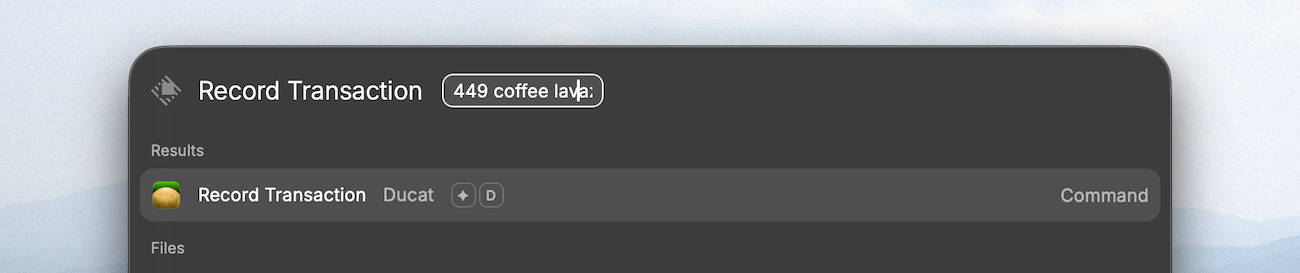
Quick and handy.
7. Compress images
The TinyPNG extension is a handy way to compress images in place and is an action I use almost daily for my blog posts and newsletter:
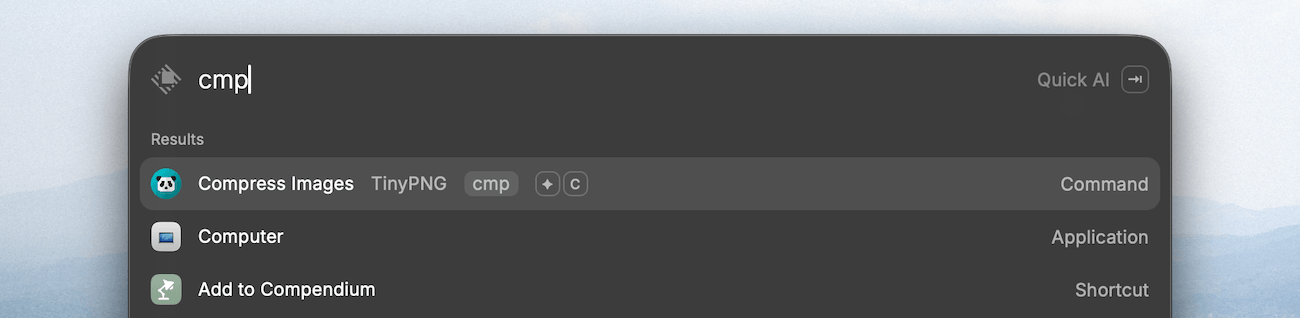
You'll need a Tinify API key for this, which you can get for free from their website.
I used to do this via the Dropzone app, but this extension with the ✦C hotkey is much more convenient.
8. Download videos from a website
I often download clips from Twitter and YouTube to save as inspiration or reference materials.
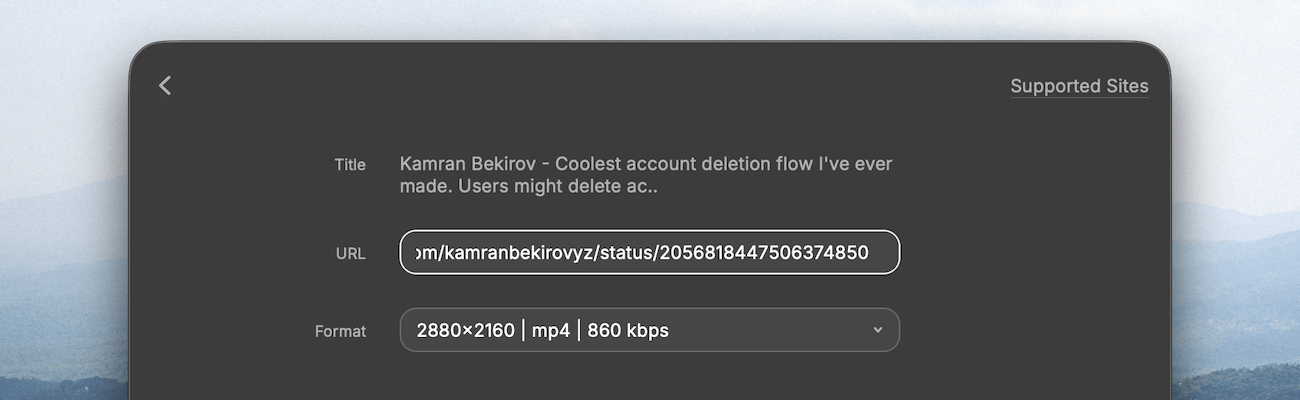
The Video Downloader extension makes this process easy.
Copy the video page URL, trigger the Download Video command and paste the video link to download in a format and resolution of your choice:
9. Managing downloads
Speaking of downloading stuff from the Internet, the Downloads Manager extension is pretty handy to manage recent downloads.
I've set an alias for the command Open Latest Download, which opens the last downloaded item from the Downloads folder:
This is my shortcut to quickly open a DMG file to install a downloaded app.
10. Eject mounted disks
Mounted disks and disk images, such as DMGs, need to be ejected safely after use from the Finder or the Desktop.
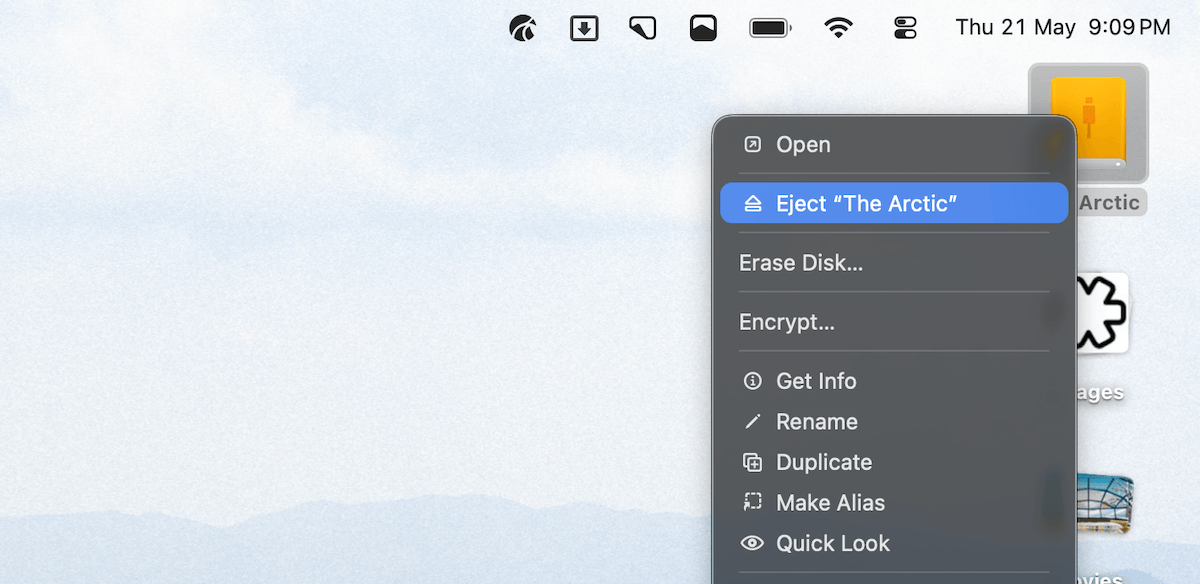
The Eject All Disks command does this in one step:
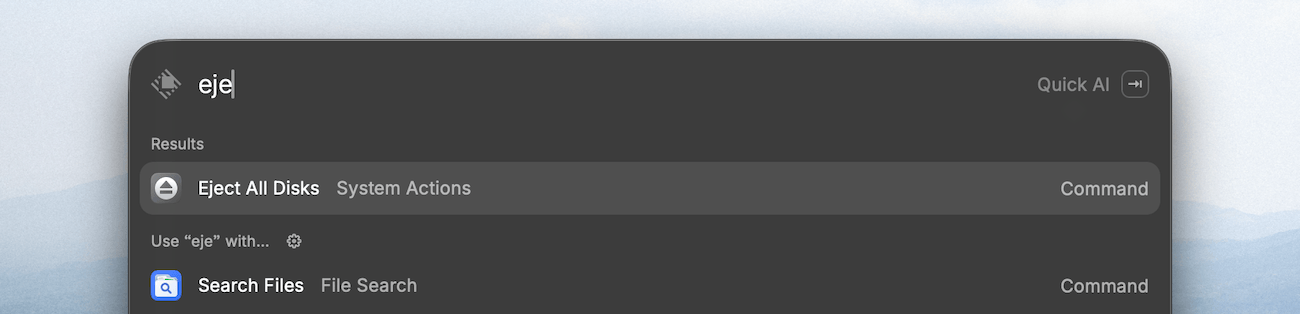
A side-benefit of this is that there's no chance of accidentally clicking on Erase Disk instead of Eject Disk, which appear one after the other in the macOS context menu:
11. Download YouTube video thumbnails
This one is niche, but I use it every week while compiling my weekly newsletter.
With the YouTube Thumbnail extension, I can paste in a YouTube link, and the extension will download the video thumbnail:
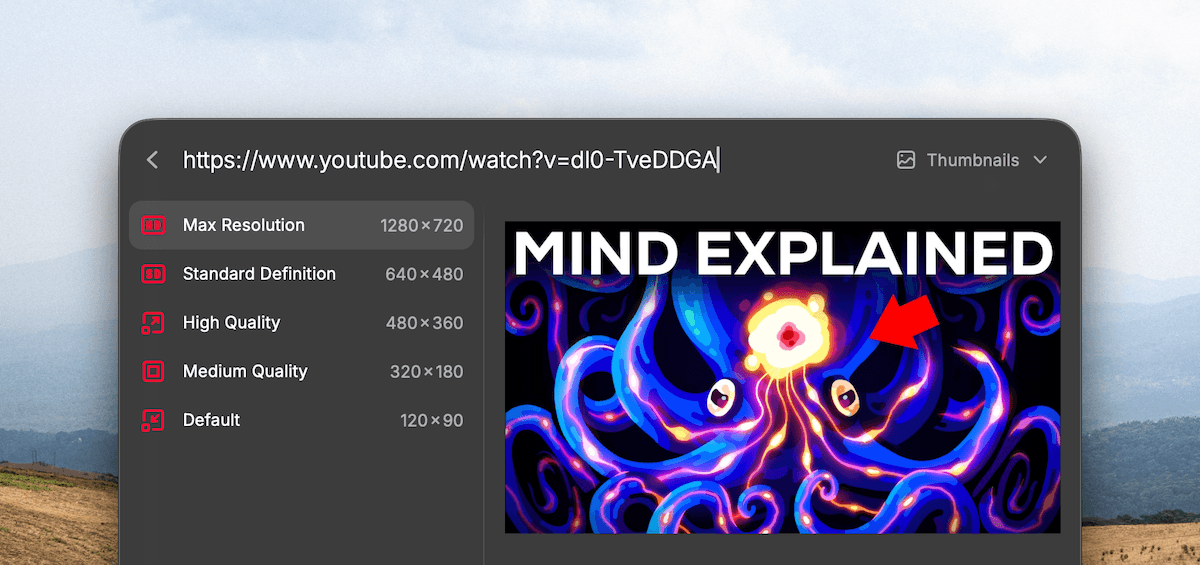
I used to do this via one of the free thumbnail downloader websites, but this extension is better and faster.
12. Creating expansion snippets
Raycast Snippets are quite helpful for pasting template text.
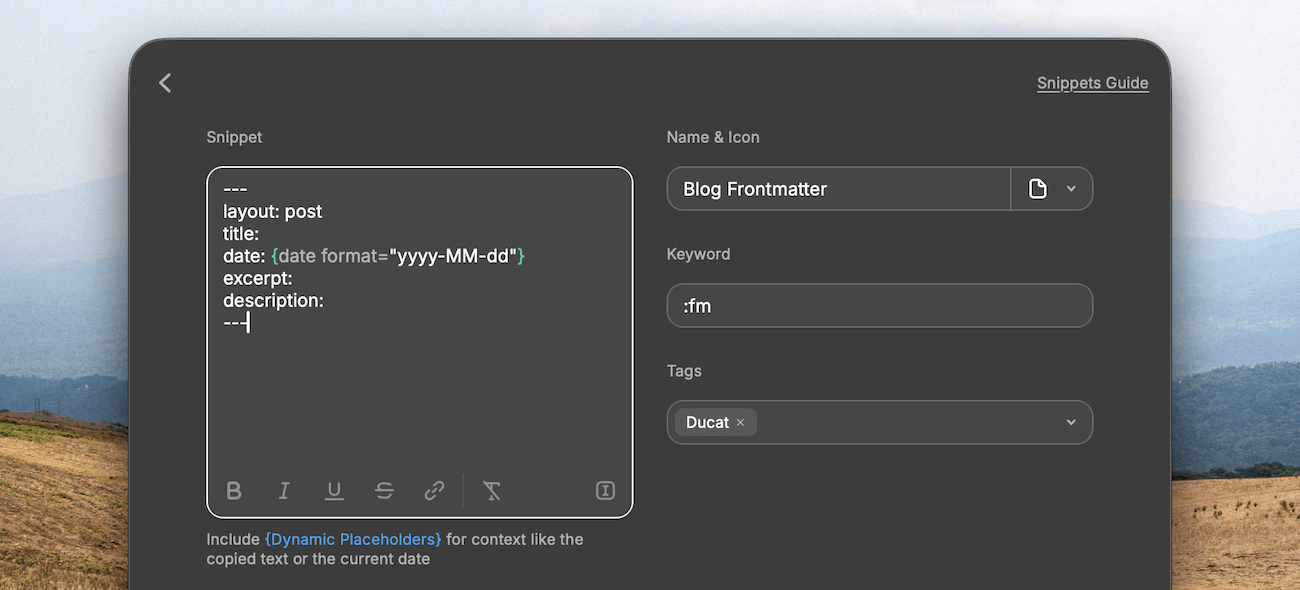
You can create one using the Create Snippet command. Dynamic placeholders, which are values that are inserted within your template when you use this snippet, make this even better.
For example, I have a snippet like this, which helps me insert front matter for blog posts with today's date prefilled in a specific format:
I used Shortcuts for this job before, but Raycast Snippets are easier to trigger.
Typing a phrase like “:fm” triggers the snippet and pastes the complete template at the cursor position.
13. Switch between spaces
The Switch to Previous Space and Switch to Next Space commands help switch between desktop spaces seamlessly:
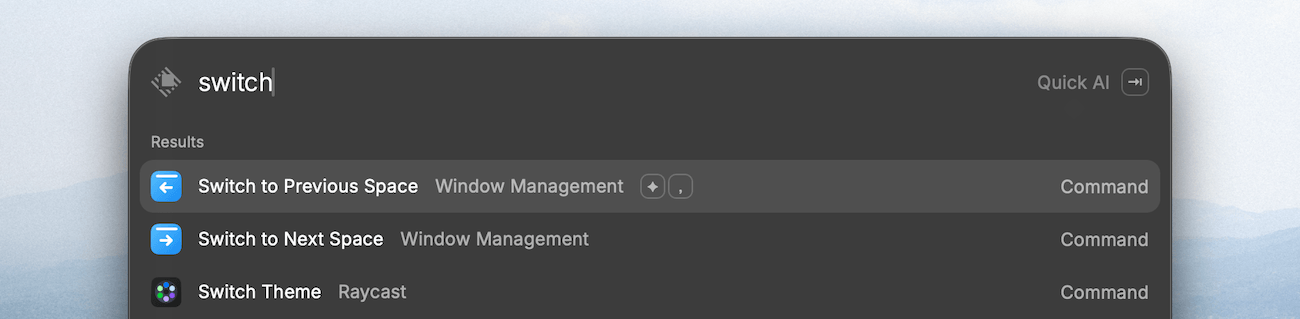
macOS has a three-finger gesture to do this, but I've assigned hotkeys to these actions, ✦> and ✦<, which is faster when I have my hands on the keyboard.
14. The Quick Delete hotkey
Across Raycast, the key combination ⌃X acts as a quick delete function in various contexts.
For example, in Raycast's built-in clipboard history, pressing ⌃X while an item is selected removes that item from history:
Using the same hotkey on an extension uninstalls the extension.
15. Starting a focus session
Raycast has a built-in focus session feature, which, when run, starts a timer for a picked duration and blocks distracting apps and websites:
This is helpful when writing articles or doing other work where I tend to get carried away.
The timer sets a hard stop and signals a break, and doubles as an app blocker.
16. Hide apps from search results
This one's a minor quality of life improvement, but under Settings → Applications, you can uncheck apps you don't want showing in the Raycast search results:
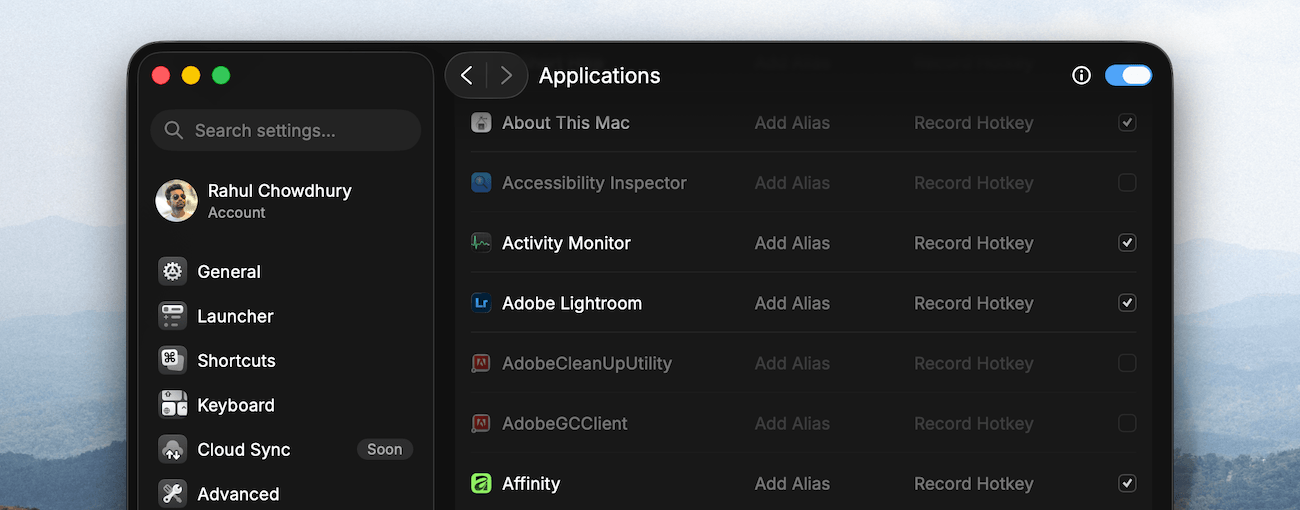
This declutters the search results and helps find the actual app you're looking for faster.
17. Auto-quit inactive apps
I previously used an app called MagicQuit to do this job, but Raycast has a built-in utility.
Under Settings → Applications → Auto Quit, you can choose apps you want to close automatically a few minutes after you've stopped using them:
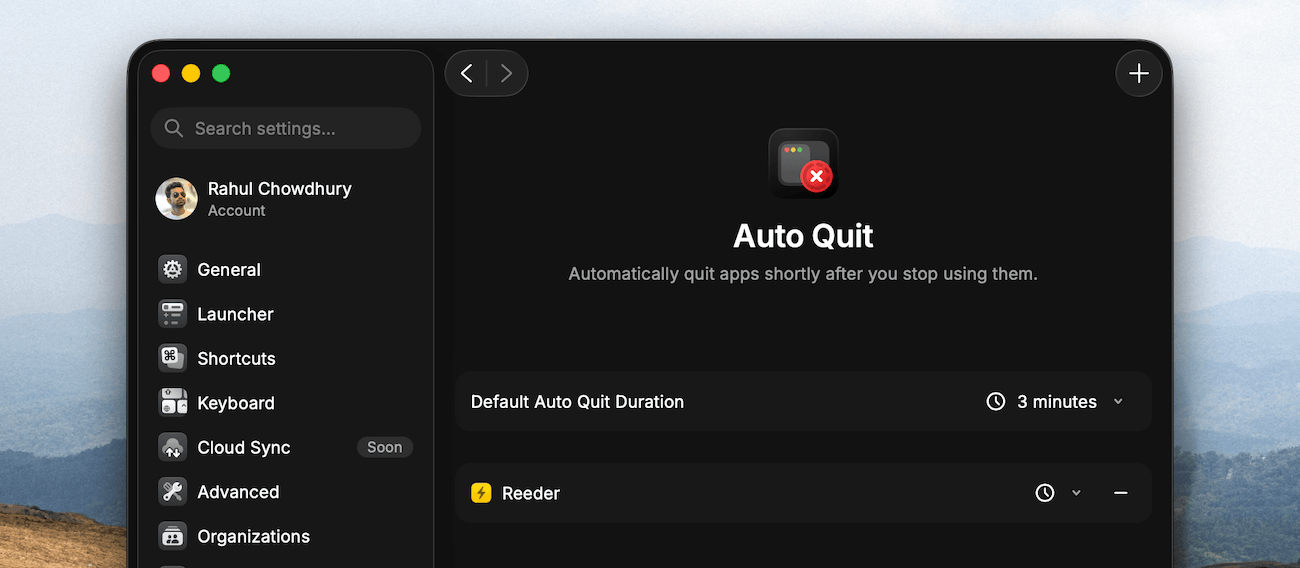
This keeps the workspace decluttered and saves memory by closing unused apps.
18. Searching app actions
Another tiny utility is Raycast's Search Menu Bar Items command:
With an alias or hotkey, this command is a handy way to search and trigger an action in the active app.
19. Keep the computer awake
The Coffee extension helps keep the system awake during downloads and background work, such as running AI agents:
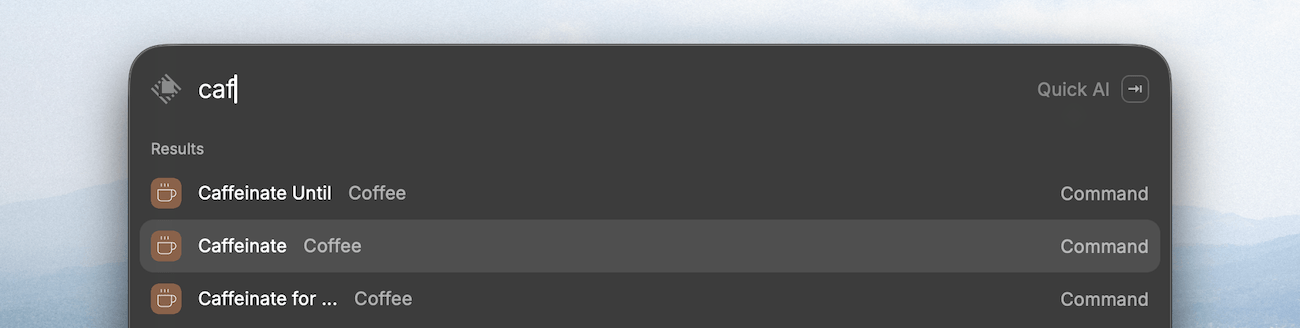
This is one of my least-used commands, but it comes in handy when I have Plex streaming media to my TV from my MacBook.
I used Amphetamine before, but this extension can do most of what that app does.
More for later, probably
That's everything I'm using Raycast for right now.
Not every feature or extension will be new or helpful to you, but I hope some will be.
Try them out, and let me know your tips at rc@hulry.com.